Migrating a WordPress site is stressful enough when everything is stock. Add a handful of custom-built plugins and a hand-coded theme, and suddenly every migration guide you find online feels incomplete. They cover the database, the uploads folder, maybe wp-config.php. They rarely mention what happens to that custom plugin your developer wrote three years ago that nobody fully documented.
Here's the good news: custom code doesn't make migration impossible. It just changes where you need to pay attention.
What Stays the Same During a WordPress Migration Service
Whether your site runs five free plugins from the repository or ten custom-built ones, the core mechanics of a WordPress migration service don't change. You still need to move three things:
- The database (posts, pages, settings, user accounts)
- The wp-content folder (themes, plugins, uploads)
- Configuration details (wp-config.php, permalinks, .htaccess rules)
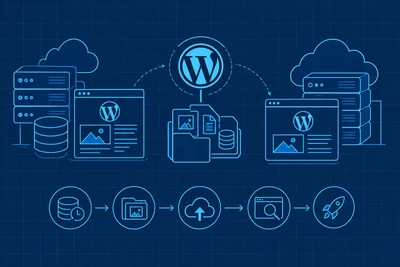
A good migration process backs up all three, moves them to the new server, updates the database URLs, and verifies everything loads correctly. None of that logic changes just because your plugins are custom. The file is still a file. The database table is still a database table.
Server Environment Compatibility Matters More
What does change is how carefully you need to check server compatibility. Off-the-shelf plugins are usually built to run on a wide range of PHP versions and server configurations, because the developers want them to work for as many customers as possible. Custom plugins often aren't tested that way. They were built for one server, by one developer, who had very specific PHP settings in mind.
Before you migrate, check:
- PHP version - custom code written five years ago might use functions deprecated in newer PHP releases
- PHP extensions - does your plugin need GD, ImageMagick, cURL, or something less common like Redis or memcached extensions?
- Memory limits - heavier custom functionality sometimes needs more memory_limit than a default install provides
- Composer dependencies - if your plugin was built with Composer packages, those need to come along too, not just the plugin folder itself
This is the step most migration checklists skip, and it's exactly where custom-built sites break. We covered the broader version of this process in The Pre-Migration Checklist Every WordPress Site Owner Should Complete Before Switching Hosts, but with custom code, treat every item on that list as non-negotiable rather than optional.
Custom Themes Bring Their Own Quirks
A custom theme usually means hardcoded file paths, custom post types registered in functions.php, and maybe some asset references that assume a specific folder structure. Here's what to watch for:
Hardcoded URLs and Paths
Developers sometimes hardcode the site's domain or absolute server paths directly into theme files, instead of using WordPress functions like get_template_directory_uri(). If your theme does this, a straightforward database search-and-replace for the domain name won't catch everything. You'll need to also check theme files themselves for any references to the old domain or old server path.
A search and replace tool that works across both files and the database saves a lot of manual digging here, since it lets you catch references in PHP files, not just database rows.
Custom Post Types and Taxonomies
If your theme or a custom plugin registers its own post types (like "Portfolio" or "Testimonials"), those live in the database just like regular posts. They migrate fine as part of the standard database export. The risk is if the code that registers those post types doesn't migrate correctly, or activates in the wrong order, WordPress may not recognize the content type on the new site until the plugin or theme loads properly.
Testing Custom Functionality Before You Flip the Switch
With stock plugins, a quick visual check after migration usually catches problems. With custom functionality, you need to actually test the features that custom code powers; a contact form with custom validation logic, a membership gate, an API integration pulling data from a third-party service. Visual similarity doesn't mean functional similarity.
This is where a staging environment earns its keep. Instead of testing custom plugin behavior on your live domain and hoping for the best, you can run the migrated site in a staging copy first, click through every custom feature, and confirm database connections and API keys are pointing to the right places before anyone else sees it. Staging environments exist specifically for this kind of dry run.
A Practical Testing Checklist
- Log in and test any custom admin pages or settings screens
- Submit any custom forms and confirm the data saves or sends correctly
- Check third-party API integrations (payment gateways, CRMs, shipping calculators)
- Test custom user roles and permissions if your plugin created any
- Verify scheduled tasks (cron jobs) your plugin relies on are still running
Backups Are Your Safety Net, Not an Afterthought
Before touching anything, take a full backup of both files and database from the original site. If a custom plugin behaves unexpectedly on the new server, and you haven't documented exactly how it was configured before, a backup is the fastest way back to a known good state. A solid backup setup that lets you restore specific files or specific database tables, rather than an all-or-nothing restore, is particularly useful here. If only your custom plugin's database tables got corrupted during the move, you want to restore just those tables, not roll back the entire site and lose content changes made since.
Version Control Helps More Than You'd Think
If your custom plugins and theme files live in a Git repository, migration gets considerably less risky. You can pull the exact same codebase onto the new server rather than copying files and hoping nothing got missed or corrupted in transit. It also gives you a clean rollback point if something about the new environment causes unexpected behavior, since you can compare file states before and after the move.
If you haven't been using version control for your custom code, a migration is a good forcing function to start. For details on moving a large or complex site specifically, see How to Migrate a Large WordPress Site Without Losing a Single Post.
The Takeaway
Custom plugins and themes don't fundamentally change how a WordPress migration service works. The files and database still need to move the same way they always do. What changes is the level of diligence required: checking server compatibility against code that was written for one specific environment, hunting down hardcoded paths that a database search-and-replace might miss, and actually testing custom functionality rather than just eyeballing the homepage. Budget extra time for this, document how your custom code is configured before you start, and lean on staging and granular backups to catch problems before they reach your visitors.