Moving a WordPress site always sounds scarier than it actually is. You've spent months (or years) building something, and the idea of touching the hosting underneath it can feel risky. But a WordPress migration service exists precisely to take that risk off your plate, and once you know what actually happens during the process, it stops feeling like a mystery.
Let's walk through what a typical migration looks like, step by step, so you know exactly what to expect before, during, and after the move.
Why People Use a WordPress Migration Service in the First Place
Most site owners don't move hosts for fun. They move because their current host is slow, support is unresponsive, or they've outgrown shared hosting and need something built for real traffic. Whatever the reason, the technical part of the move (files, databases, DNS, email, SSL) is where things get complicated if you try to do it manually.
A proper WordPress migration service handles all of that for you, which is why more site owners are choosing to let a managed host do the heavy lifting instead of copying files over FTP at 2am.
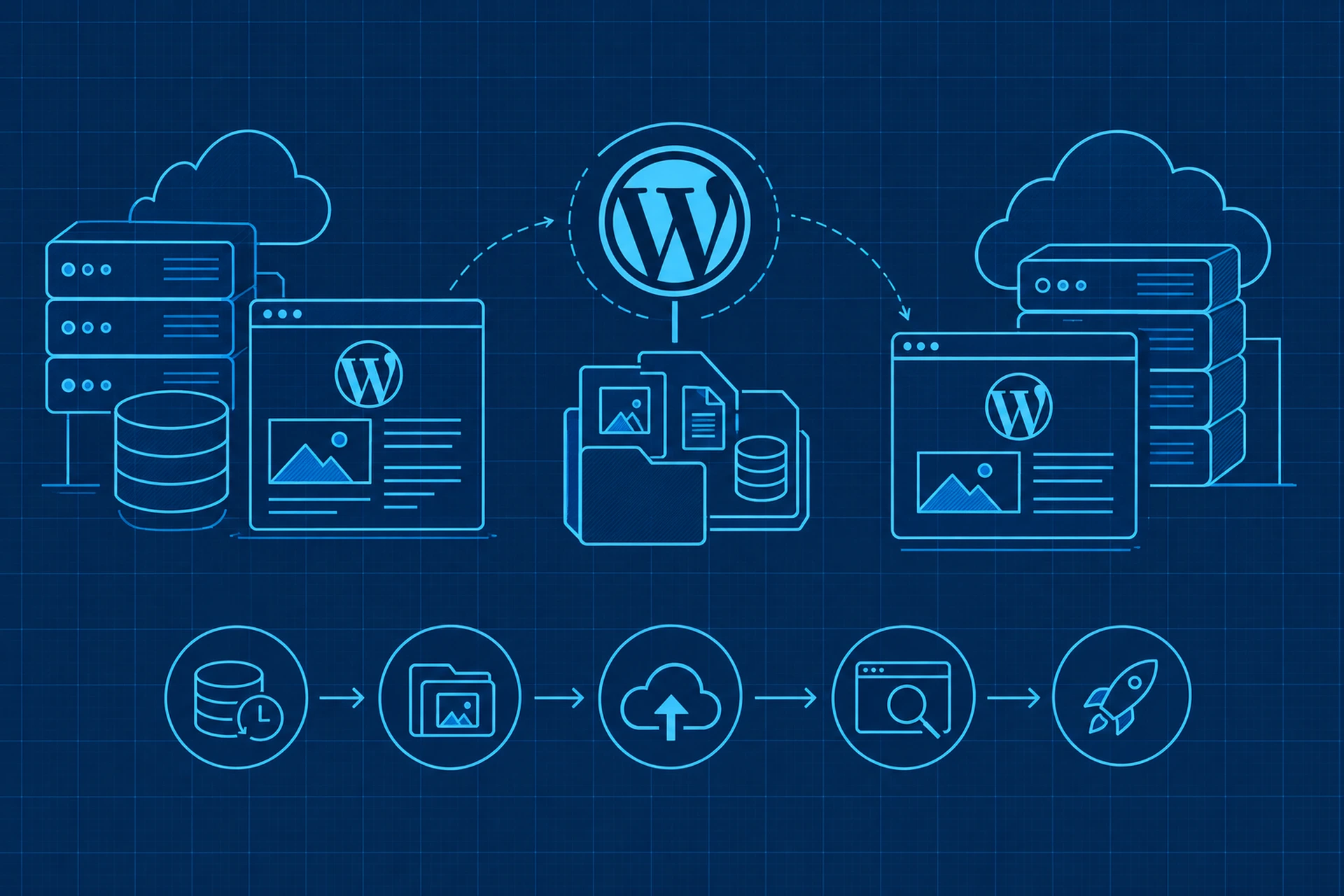
Step 1: A Pre-Migration Audit
Before anything moves, a good migration service looks at what you actually have. This usually includes:
- Your WordPress core version and PHP version
- Active plugins and themes, including anything outdated or abandoned
- Database size and any unusual table structures
- Custom code, cron jobs, or integrations that might not survive a simple file copy
This step matters more than people think. We covered the groundwork for this in The Pre-Migration Checklist Every WordPress Site Owner Should Complete Before Switching Hosts, and it's worth a read if you're still in the planning stage.
Step 2: A Full Backup Before Anything Touches Your Live Site
No migration should start without a complete backup of your files and database. This is your safety net. If something unexpected happens mid-move, you want a point you can roll back to without losing a single post or order.
On our platform, backups include both files and databases, and you can browse through them like a file tree if you ever need to restore something specific rather than the whole site. Daily backups and restore options are also worth having in place long after the migration is done, not just during it.
Step 3: Moving the Files and Database
This is the part people picture when they think "migration," and it's usually the most automated step. The process typically involves:
- Copying all WordPress files (themes, plugins, uploads, core files) to the new server
- Exporting the database and importing it into the new environment
- Running search and replace on the database to update URLs, since WordPress stores your domain in dozens of places inside the database, not just in one settings field
That last part trips up a lot of DIY migrations. If you just copy files and swap DNS without updating the database URLs, you end up with broken images, redirect loops, or a site that looks fine on the surface but has broken links buried three pages deep.
Why URL Search and Replace Needs to Be Precise
WordPress serialized data (used for widgets, some page builders, and theme settings) breaks if you do a careless find-and-replace with a text editor. The string lengths have to match exactly, or WordPress can't read the data anymore. This is why migration tools use database-aware search and replace rather than a plain text swap, so serialized arrays stay intact.
Step 4: Testing on a Staging Copy Before Going Live
A smart migration doesn't flip the switch the moment files land on the new server. Instead, the new copy gets tested first, usually on a temporary URL or staging environment, so you can click through the site, test forms, check checkout flows, and confirm everything looks right before real visitors ever see it.
If your new host offers a proper staging environment, this step becomes far less stressful, since you're testing on an exact copy rather than guessing.
Step 5: SSL, DNS, and the Actual Cutover
Once everything checks out, the final step is pointing your domain at the new server. This involves:
- Updating DNS records to point to the new server's IP address
- Issuing a new SSL certificate so HTTPS keeps working without interruption
- Waiting out DNS propagation, which can take anywhere from a few minutes to a few hours depending on your DNS provider's TTL settings
During propagation, some visitors might briefly hit the old server and others the new one. A well-planned migration keeps both versions in sync during this window so nobody notices a thing. If you want the deeper mechanics of this, our post on DNS management is a good companion read.
Step 6: Confirming Everything Actually Works
After cutover, the job isn't done until someone verifies the result. This means checking:
- That the site loads correctly on the new server for every major page type
- That forms, search, and checkout (if you run WooCommerce) still function
- That email delivery still works if you use the same domain for mail
- That search engines aren't blocked from crawling the new site by accident
This last point matters more than most people realize. A rushed migration can accidentally leave a "noindex" tag active or break canonical URLs, which quietly hurts your SEO for weeks before anyone notices. If you're curious how this connects to rankings specifically, we go into it in How a Professional WordPress Migration Service Protects Your SEO During a Host Switch.
How Long Does a WordPress Migration Actually Take?
For a typical WordPress site, the technical migration itself usually takes a few hours. Larger sites with big media libraries or complex databases can take longer, mostly due to transfer time rather than complexity. DNS propagation adds a small buffer on top, though with modern low-TTL setups this is often under an hour.
The slowest part is usually the human side: reviewing the staging copy carefully before approving the cutover. That's time well spent, though, since it's much easier to catch an issue before launch than to fix it after your visitors start noticing.
The Takeaway
A WordPress migration doesn't have to be a white-knuckle event. With a backup in place, a tested staging copy, careful database handling, and a clean DNS cutover, moving your site can be close to invisible to your visitors. If you're planning a move soon, start with a full audit of your current setup, and don't skip the staging test, even if it feels like an extra step. It's the step that saves you from surprises.