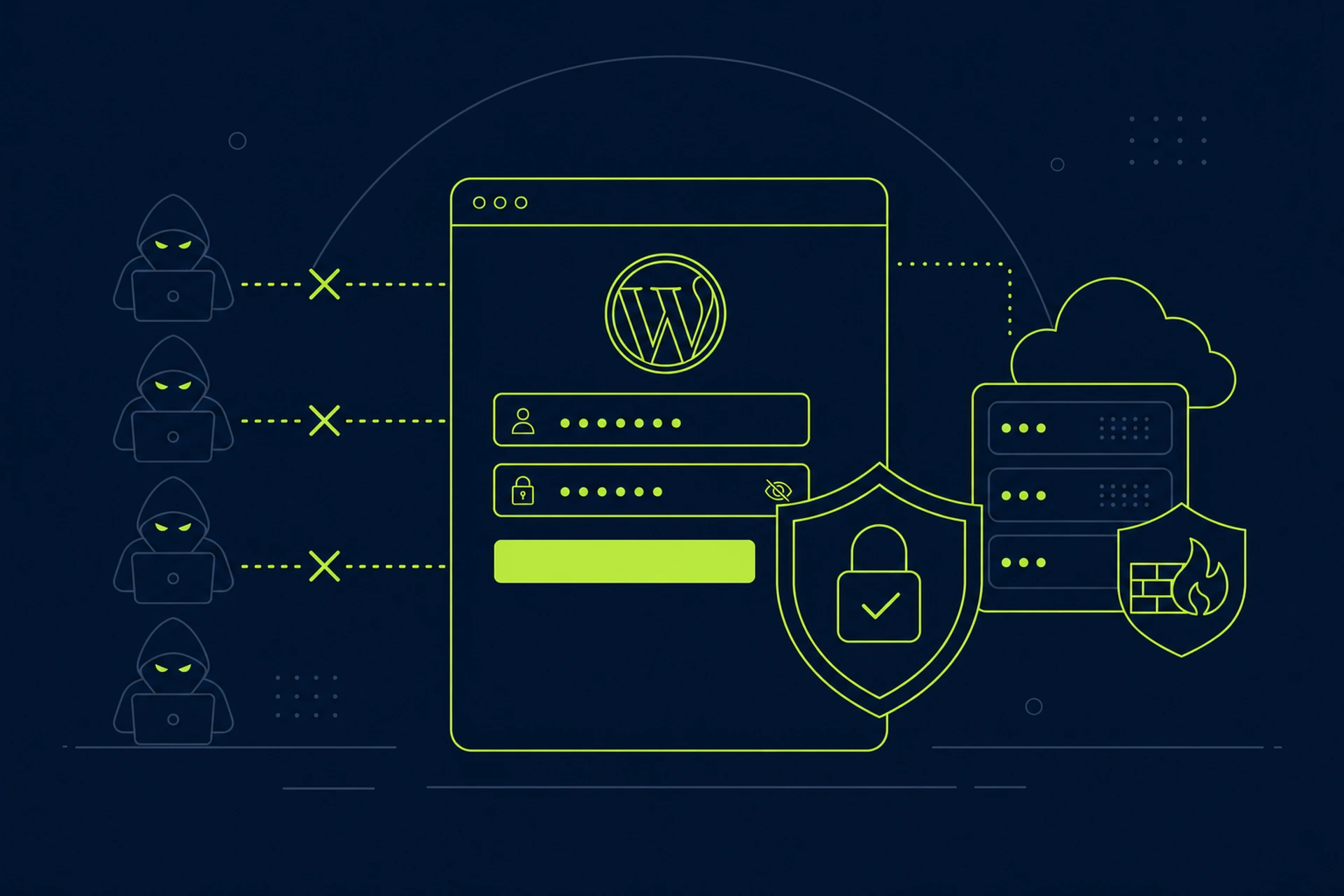
If you've ever checked your WordPress login logs, you know the truth: bots are trying to break into your site right now. Not because your site is special. Because it's a WordPress site, and that's enough to make it a target.
The good news is that most brute force attempts are dumb. They try the username "admin," a handful of common passwords, and move on if they don't get in fast. A few small changes to your login setup will stop nearly all of them, without requiring any advanced security knowledge.
Why WordPress Login Pages Get Hit So Often
WordPress powers a huge chunk of the internet, and every install has the same login URL by default: /wp-login.php. Attackers don't need to guess where your login page is. They already know. That's why automated bots scan millions of sites a day, quietly trying username and password combinations, hoping to find one that sticks.
Most of these attacks aren't personal. They're automated scripts running through lists of leaked credentials, checking if any WordPress site out there reuses them. If your login page is wide open with no protections, you're an easy target regardless of how small your site is.
Change the Default Admin Username
If your admin username is "admin," you've already given away half the puzzle. Attackers only need to guess your password now instead of both pieces.
- Create a new administrator account with a unique username
- Move your content and settings over if needed
- Delete or demote the old "admin" account
This single step removes a huge percentage of automated attempts, since most bots are scripted around common usernames like admin, administrator, or your site name.
Use Strong, Unique Passwords
This sounds obvious, but it's still the number one weakness on most sites. A strong password is long (at least 16 characters), random, and not reused anywhere else. Use a password manager to generate and store these instead of trying to remember them.
Weak passwords are exactly what brute force attacks are built to find. A password like Summer2023! will fall in minutes. A random 20-character string generated by a password manager won't fall at all with current technology.
Limit Login Attempts
By default, WordPress lets you try logging in as many times as you want. That's an open invitation for bots to keep guessing until they get lucky. Limiting login attempts closes that door.
Plugins like Limit Login Attempts Reloaded or WP Limit Login Attempts will lock out an IP address after a set number of failed tries, usually 3 to 5. This alone stops the vast majority of brute force scripts because they simply don't have time to keep retrying against a locked account.
Add Two-Factor Authentication
Even if someone gets your password, two-factor authentication stops them from getting in. It requires a second code, usually from an app on your phone, before login completes. We wrote a full walkthrough on this in How to Set Up Two-Factor Authentication on WordPress in Under Ten Minutes, and it genuinely takes about that long to set up.
This is one of the highest-impact changes you can make. It doesn't just slow down attackers, it makes password guessing pointless on its own.
Hide or Rename Your Login Page
You can't stop bots from knowing WordPress sites usually have /wp-login.php, but you can move your login page to a custom URL. Plugins like WPS Hide Login let you change the login path to something only you know, like /staff-portal instead of /wp-login.php.
This won't stop a targeted, determined attacker, but it eliminates almost all automated scans instantly, since they're built around the default path.
Add a CAPTCHA to the Login Form
A simple CAPTCHA or checkbox challenge (like Google reCAPTCHA or hCaptcha) filters out the vast majority of scripted bot traffic before it even reaches your login form. Combined with limited login attempts, this makes automated brute forcing almost pointless.
Block Malicious Traffic Before It Reaches WordPress
All the plugin-level protections above happen inside WordPress itself, which means the request still has to reach your server first. A web application firewall filters out known attack patterns and malicious bots before they ever touch your login form. If you want to understand how this layer works, our WAF overview breaks it down in plain terms.
This is the kind of protection that works quietly in the background. You never see the attempts that get blocked, you just notice that your login logs stay clean.
Keep an Eye on Failed Login Activity
Even with all these changes in place, it helps to know what's happening on your site. A quick health check on your WordPress installation can flag unusual login activity or outdated plugins that create vulnerabilities. On managed hosting, this kind of check often happens automatically, surfacing security warnings before they become real problems.
A Simple Checklist to Start Today
- Replace the "admin" username with something unique
- Use a password manager and generate a long, random password
- Install a login attempt limiter (lock out after 3-5 failed tries)
- Turn on two-factor authentication
- Change your login page URL to something non-default
- Add a CAPTCHA to your login form
- Make sure a firewall is filtering traffic before it reaches WordPress
None of these steps require deep technical skill. Most take five minutes each. Together, they stop the overwhelming majority of brute force attempts, because most attacks are automated and built around default settings. Once you move off those defaults, you've already made yourself a much harder target.
If you want to go further and look at your site's overall security posture, our WordPress security overview covers the bigger picture beyond just login protection.