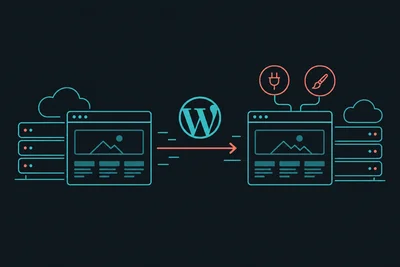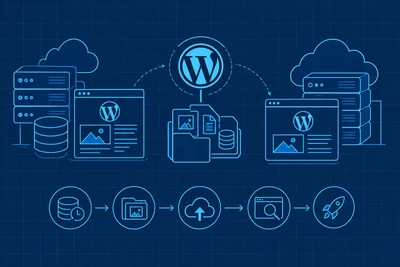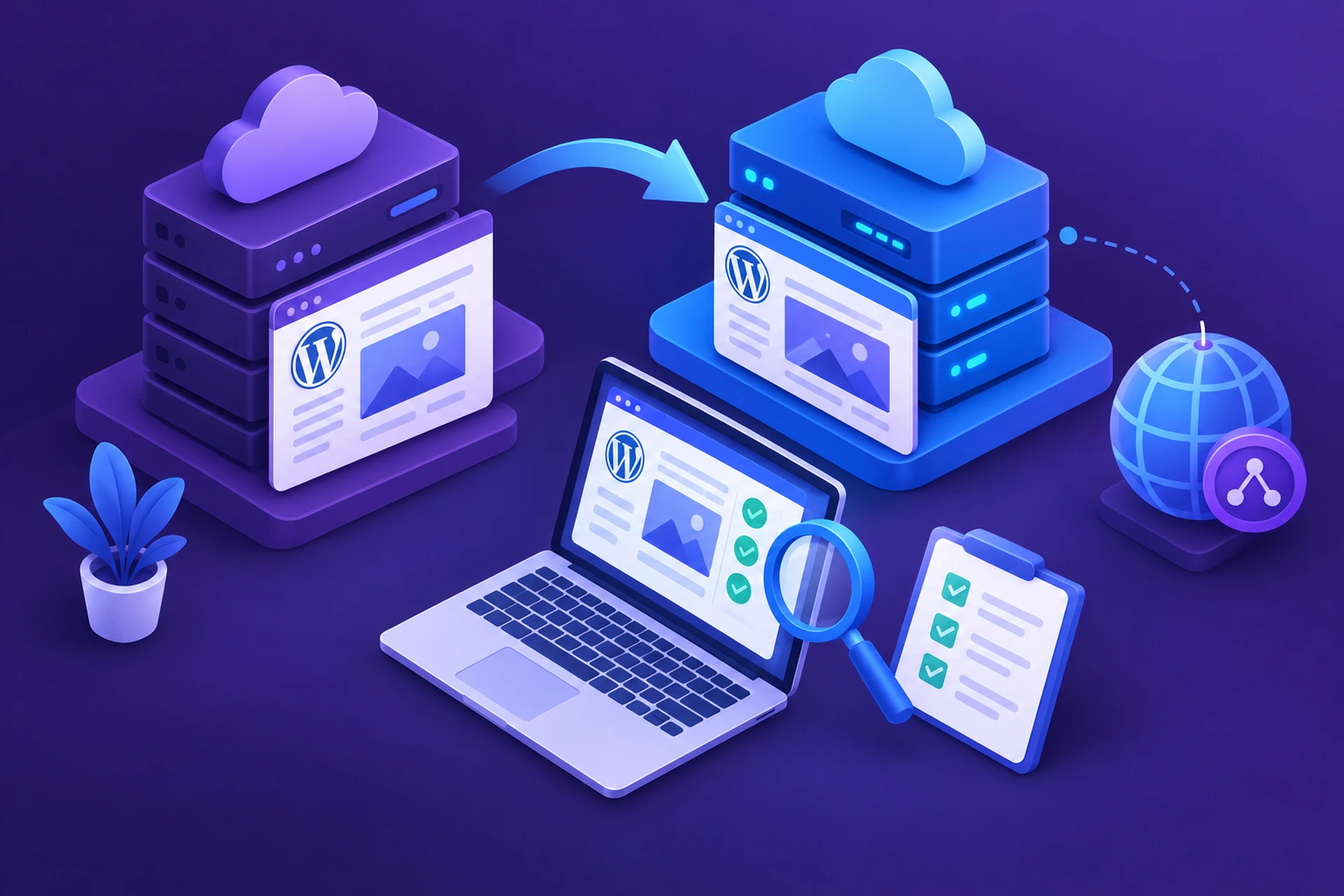
You've moved your WordPress site to a new host. The files are copied, the database is imported, and everything looks fine in a quick glance. But before you touch your DNS records and send real traffic to the new server, there's one step you really shouldn't skip: testing the site thoroughly while it's still live on the old host too.
This is the part of a WordPress migration service that separates a smooth switch from a stressful one. Done right, your visitors never notice anything changed. Done wrong, you find out about broken checkout pages or missing images after your domain is already pointed and customers are already seeing errors.
Why Testing Before DNS Cutover Matters
Once you update your domain's DNS records, it can take anywhere from a few minutes to 48 hours for the change to fully propagate across the internet. During that window, some visitors see your old site and some see the new one. If the new site is broken, you're serving errors to a chunk of your audience with no easy way to undo it instantly.
Testing beforehand means catching problems while your live site is still untouched on the old host. No pressure, no live traffic at risk, and plenty of time to fix things properly.
Use Your Hosts File to Preview the New Site
The easiest way to view your migrated site under its real domain name, without actually changing DNS, is to edit your local hosts file. This file lets your computer temporarily map your domain to the new server's IP address, just for you.
- Find the hosts file on your computer (on Windows it's at C:\Windows\System32\drivers\etc\hosts, on Mac and Linux it's /etc/hosts).
- Add a line with the new server's IP address followed by your domain, like 203.0.113.10 yoursite.com.
- Save the file and clear your browser's DNS cache, or just open an incognito window.
- Visit your domain as usual. You'll now be looking at the new server's version, while everyone else still sees the old one.
This trick lets you browse your actual domain, test forms, log into wp-admin, and click through pages exactly as a visitor would, all before anyone else sees the new environment.
The Core Things to Check
Pages and Posts
Click through your main pages, a handful of blog posts, and anything with embedded media. Check that images load, that internal links point to the right places, and that nothing is showing a broken shortcode or missing featured image.
Forms and Interactive Elements
Contact forms, newsletter signups, and comment sections all depend on plugins that sometimes need reconfiguring after a move. Submit a real test entry and confirm it arrives where it should, whether that's your inbox or a CRM integration.
Ecommerce Functionality
If you're running WooCommerce or another store plugin, this is the section to take seriously. Add a product to the cart, go through checkout with a test order, and confirm payment gateways are still connected correctly. Nothing damages customer trust faster than a checkout that silently fails.
SSL and HTTPS
Your new host needs a valid SSL certificate installed and working before you cut over, otherwise visitors will hit security warnings the moment DNS updates. Most managed hosts issue certificates automatically, but it's worth confirming the padlock shows up cleanly when you browse the hosts-file version of your site. If you want a deeper look at how certificate issuance and renewal actually works, see our SSL certificate overview.
Database and Dynamic Content
Log into wp-admin and check that user accounts, saved settings, and any custom post types made the trip intact. If your site has a membership area or user dashboard, log in as a test user and confirm everything behaves normally.
Site Speed
A migration is also a good moment to confirm the new server is actually faster, not just functionally equal. Run the hosts-file version of your site through a speed testing tool and compare the numbers against the old host. If things feel slower than expected, check caching configuration before you go live, not after.
Don't Forget These Easy-to-Miss Details
- Email functionality: WordPress sends transactional emails for password resets, order confirmations, and form submissions. Test at least one of these to confirm your new server can actually send mail.
- Redirects: If you have custom redirects set up (old URLs pointing to new ones), confirm they survived the move. Missing redirects quietly break SEO and frustrate visitors hitting old bookmarks.
- Search functionality: Test the site search bar if you have one. Broken indexing after a database migration is a common, easy-to-miss issue.
- Admin plugin settings: Some plugins store absolute URLs or server paths in their settings. Double check anything related to CDNs, caching, or backups.
Run a Final Health Check
Most modern WordPress installs include a built-in Site Health screen under Tools in wp-admin. It flags issues like missing PHP extensions, outdated software, or broken REST API endpoints, which are exactly the kinds of things that slip through after a server change. It's a two-minute check worth running before you flip the switch.
If you're on managed hosting, your dashboard likely has its own version of this too, often paired with a performance profiler that shows load times, database query counts, and memory usage side by side. That kind of visibility makes it much easier to confirm the new environment is actually performing the way it should before real visitors arrive.
When You're Ready to Switch DNS
Once everything checks out, update your domain's DNS records to point to the new server. Keep the old hosting account active for a few days as a safety net. If anything unexpected shows up once real traffic hits, you'll still have the old environment to fall back on while you troubleshoot.
We've covered the broader process in detail in What to Expect During a WordPress Migration, and if you haven't done your prep work yet, our pre-migration checklist is a good place to start before you even get to this testing stage.
The Takeaway
Testing your migrated site before DNS cutover isn't an optional extra step, it's the difference between a quiet, invisible migration and a scramble to fix things while customers are watching. Use the hosts file trick to preview your real domain, work through forms and checkout flows methodically, and don't flip DNS until you're genuinely confident everything works. Your future self will thank you.