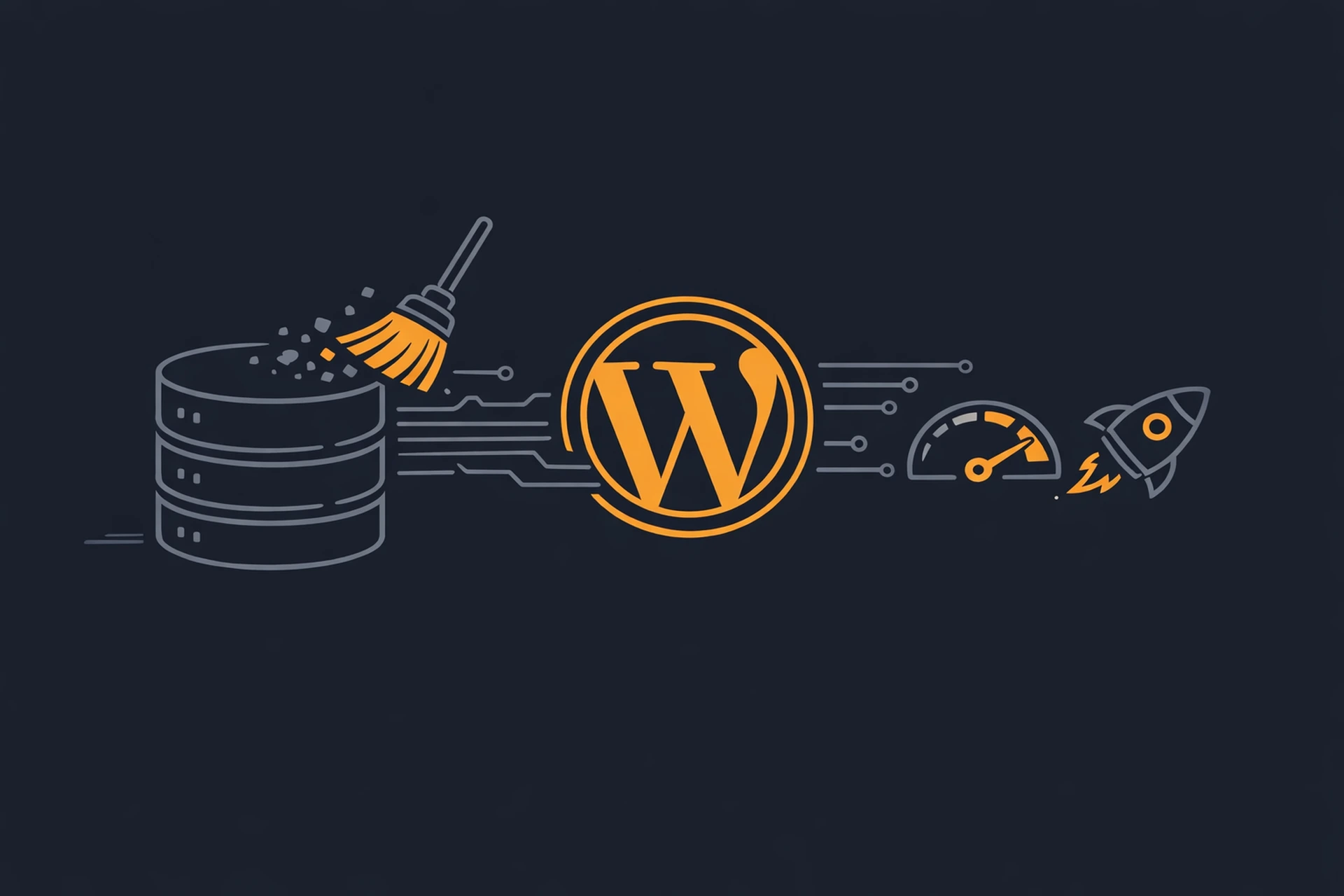
Your WordPress site might be doing everything right on the surface - fast theme, optimized images, caching plugin installed - and still feel sluggish. If you haven't looked at your database lately, that's probably where the problem lives.
WordPress databases accumulate waste over time. Post revisions, trashed pages, expired transients, orphaned metadata - none of it is visible to your visitors, but all of it adds up. Every query your site runs has to wade through that clutter. A bloated database doesn't just slow down load times. It makes every database-dependent operation heavier, from displaying a simple blog post to processing a WooCommerce order.
The good news is that cleaning it up is straightforward, and the speed improvements can be noticeable within minutes.
What's Actually Filling Up Your WordPress Database
Before you clean anything, it helps to understand what's actually in there.
Post revisions
Every time you save a post or page, WordPress stores a full copy of the previous version. By default, it keeps every revision forever. A post you've edited 40 times has 40 copies sitting in your database. On a busy site with hundreds of posts, this can add tens of thousands of rows to your wp_posts table alone.
Trashed posts and pages
Content you've moved to the trash doesn't disappear immediately. WordPress holds it for 30 days by default. During that time, all associated metadata, comments, and relationships stay in the database too.
Expired transients
Plugins use transients to store temporary data - think cached API responses, search results, and so on. When a transient expires, WordPress doesn't always clean it up right away. These expired entries pile up in your wp_options table, which gets checked on almost every page load.
Orphaned metadata
When you delete a post, page, or user, WordPress doesn't always clean up all the associated metadata. You can end up with rows in wp_postmeta and wp_usermeta that point to content that no longer exists.
Spam and trashed comments
If your site gets any spam traffic (and every site does), your comments table fills up quickly. Even legitimate comments that are trashed or unapproved take up space and slow down queries.
Table overhead
After lots of inserts and deletes, MySQL tables accumulate fragmentation. The table still holds space for deleted rows, even though the data is gone. This is called overhead, and it forces MySQL to do extra work on every query.
How to Clean Your WordPress Database
Use a plugin for safe, scheduled cleanup
The easiest approach for most site owners is a dedicated database optimization plugin. A few solid options:
- WP-Optimize - Lets you clean revisions, transients, trash, spam comments, and optimize tables. Has a scheduler so cleanup runs automatically.
- Advanced Database Cleaner - More granular control, including orphaned data detection and table repair.
- WP Rocket - If you're already using WP Rocket for caching, its database optimization tab handles most of this without adding another plugin.
With any of these, the workflow is the same: scan your database to see what's there, review what will be removed, then run the cleanup. Always take a backup first. This isn't just advice - it's the step that separates confident cleanups from regrettable ones.
Limit revisions going forward
Cleaning old revisions is a one-time fix. Preventing them from building back up again is the smarter long-term play. Add this to your wp-config.php file:
define('WP_POST_REVISIONS', 5);
That keeps the last five revisions per post and discards anything older. If you don't use revisions at all, you can set it to false to disable them entirely.
Optimize your tables after cleanup
After deleting a lot of data, run an OPTIMIZE TABLE command on your main tables. This reclaims the space freed by deletions and defragments the table structure. Most cleanup plugins do this automatically. If you prefer doing it manually, you can run it from phpMyAdmin by selecting your tables, choosing "Optimize table" from the dropdown, and letting it run.
The difference in table size before and after can be dramatic. Sites that have never been optimized sometimes see their database shrink by 30-50% after the first cleanup.
WordPress Speed Optimization Starts With What's Under the Hood
Most WordPress speed optimization advice focuses on the front end - images, CSS, JavaScript, caching. All of that matters. But if your database is doing unnecessary work on every request, you're building on a shaky foundation.
A clean database means faster queries. Faster queries mean a lower Time to First Byte. And a lower TTFB means everything else - your caching, your CDN, your optimized assets - gets to do its job without waiting for a slow database to catch up.
If you've already tried the usual WordPress speed optimization steps and your site still feels slow, running a performance profile is a smart next step. It shows exactly how many database queries each page load is generating, how long they're taking, and where the bottlenecks are. That data tells you whether your database is the culprit or if the problem lives somewhere else. We include this kind of profiling directly in our platform, so you can see query counts and load time breakdowns without installing any third-party tools.
For a broader look at what slows WordPress sites down at the query level, this breakdown of slow database queries is worth reading alongside your cleanup work.
Setting Up Automatic Maintenance
The best database cleanup is one you never have to think about. Most cleanup plugins include a scheduler - use it. A weekly automatic cleanup keeps overhead from building back up and keeps your query times consistent over time.
A few things worth scheduling:
- Delete expired transients (weekly)
- Remove post revisions older than your limit (weekly or monthly)
- Empty the trash automatically (WordPress can do this natively - set EMPTY_TRASH_DAYS in wp-config.php)
- Optimize tables after each cleanup run
If your hosting environment supports server-level caching or a Redis object cache, those work alongside a clean database - not instead of it. Object caching reduces how often WordPress hits the database at all, but it works best when the queries it does run are lean and fast. For more on how caching layers interact with WordPress performance, see how to use caching plugins without accidentally breaking your site.
One More Thing: The wp_options Table
This table deserves special attention. WordPress loads a large chunk of the wp_options table into memory on every single page request. Over time, plugins dump persistent data into it - settings, cached values, API keys, and leftovers from plugins you've long since deleted.
Tools like Query Monitor or the Advanced Database Cleaner plugin can show you what's in there. Look for rows marked as autoload = yes - those are loaded on every request. Anything that's large, outdated, or belongs to a plugin you've removed can be safely deleted.
Getting the autoloaded data in wp_options under control is one of the highest-impact database tasks you can do for WordPress speed optimization. It's often overlooked because it requires a bit more manual review, but the payoff is real.
The Takeaway
Database cleanup isn't glamorous, but it's one of the most effective things you can do for WordPress performance. The work is mostly one-time setup - run the cleanup, put revision limits in place, schedule automated maintenance - and then the gains stick.
If you want to know where your site actually stands before and after, measure it. Run a page speed test, check your query counts, and compare. Numbers don't lie, and the difference after a proper database cleanup often surprises people who've been chasing speed improvements in other places for months.
For a full picture of what's available to diagnose and improve WordPress performance, our WordPress optimization overview covers the tools and approaches we use on every site we manage.