You've made the decision. You're done wrestling with server configurations, chasing down slow load times, and wondering whether your site is actually backed up. Switching to managed WordPress hosting sounds great in theory — but what actually happens once you make the move?
A lot of guides tell you why to switch. This one focuses on something more useful: what the first 30 days genuinely look like, step by step, so you know what to expect and how to make the most of it.
Days 1–3: Getting Your Site Moved Without Losing Sleep
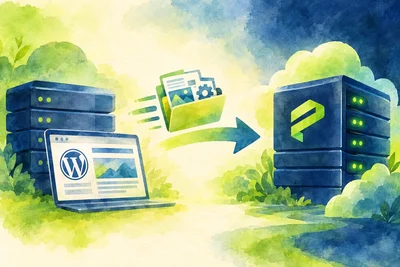
The migration is where most people feel the most anxiety — and it's usually the part that goes smoothest. On a proper managed WordPress hosting plan, the migration is either handled for you or guided closely. Either way, the process follows a predictable sequence.
Here's what typically happens:
- Your files and database are copied to the new server — your live site stays untouched until you're ready to switch.
- The staging version of your migrated site is tested first (check your theme, plugins, forms, checkout flows, and any custom functionality).
- DNS is updated only once you've confirmed everything looks right. The old host stays live during propagation, which takes anywhere from a few minutes to 48 hours depending on your TTL settings.
- Once DNS propagates, your SSL certificate is issued and your site is live on the new server.
The key rule in these first few days: don't make content changes on both sites simultaneously. Pick one source of truth and stick to it until the migration is fully complete.
Days 4–7: The Audit Phase — See What You're Actually Working With
Once you're live on your new managed WordPress hosting environment, resist the urge to immediately start installing plugins or making changes. Spend a few days auditing what you have.
Run a health check first
Most managed WordPress setups give you tools to run a health check directly from the hosting panel — not just WordPress's built-in Site Health screen, but a deeper scan that looks at your configuration, PHP version, memory limits, and any detected vulnerabilities in your plugins or themes. Run it. Fix whatever it flags. This is often when people discover they'd been running an outdated plugin with a known security hole for months without realising it.
Check your performance baseline
Before you start optimising anything, measure where you stand. Use a tool like Google PageSpeed Insights or GTmetrix to record your current scores. Then, from your hosting panel, run a performance profile on your homepage and one or two key landing pages. This shows you exactly which plugins, queries, or theme components are adding the most load time — so you can fix the right things instead of guessing.
We include performance profiling directly in the panel so you can pinpoint slow components without needing a separate tool or a developer's help.
Days 8–14: Cleaning Up and Locking Things Down
The second week is about getting your WordPress installation into a clean, lean state. You've done the audit — now act on what you found.
Prune your plugins
This is the most impactful thing most site owners skip. Go through every installed plugin and ask: is this active? Is it doing something I actually need? Is there a lighter alternative? Unused and outdated plugins are one of the most common sources of both performance drag and security risk. Delete — don't just deactivate — the ones you don't need.
Verify your backup schedule
On good managed WordPress hosting, backups run automatically on a regular schedule. But don't just assume they're running — confirm it. Check your backup history, make sure recent backups are showing as completed, and create a manual backup now so you have a clean snapshot of your freshly migrated, freshly audited site. If you ever need to restore a specific file rather than the whole site, you should be able to browse the backup and pull just that file — a much faster option than rolling back everything.
Set up your staging environment
If you haven't already, spin up a staging environment now, before you need it. It takes a few minutes and saves enormous headaches later. Any plugin update, theme change, or code experiment should go to staging first.
Days 15–21: Optimising Performance for Real
By this point, you know what's slow and what's not. Now you start fixing it.
Enable caching
Page caching is the single biggest performance win for most WordPress sites. Your managed hosting environment should handle server-level caching, but also make sure WordPress-level caching is configured correctly. If your host supports Redis-based object caching, enable it — this makes a particularly noticeable difference on sites with dynamic content, WooCommerce stores, or membership areas where full-page caching can't always be applied.
Optimise your images
Images are still the most common cause of slow pages. Convert existing images to WebP format, enable lazy loading for images below the fold, and make sure any new images you upload are compressed before they go live. A plugin like ShortPixel or Imagify handles this automatically.
Review your Core Web Vitals
Go back to the baseline scores you recorded in week one and compare. With caching, a cleaner plugin list, and optimised images, most sites see meaningful improvements in Largest Contentful Paint and Total Blocking Time. If your scores are still lagging, look at your theme — bloated page builders are often the culprit that no amount of caching can fully compensate for. For a deeper look at what actually moves the needle, this guide on speed optimisation breaks it down clearly.
Days 22–30: Building Habits That Keep Things Running Well
The last stretch of your first month isn't about big changes. It's about building the routines that keep your site healthy long-term.
Set a monthly maintenance rhythm
Once a month, do a quick pass through these items:
- Update WordPress core, themes, and plugins (test on staging first)
- Check your backup history to confirm recent backups completed successfully
- Review any security warnings flagged by your hosting panel
- Check your uptime and response time trends in your hosting analytics
- Delete any post revisions, spam comments, and transients from your database to keep things trim
Document what you changed
Keep a simple note — even a text file — of what you changed during your first 30 days. Which plugins you removed. Which settings you adjusted. What your before-and-after performance scores were. This becomes invaluable when something breaks six months from now and you're trying to remember what changed.
What You'll Notice After 30 Days
By the end of the first month on managed WordPress hosting, most site owners notice a few consistent things:
- Pages load noticeably faster — often 30–60% faster than before the switch, depending on how unoptimised the previous setup was.
- The mental load drops. You stop thinking about whether your site is backed up, whether your SSL is expiring, or whether some server update broke something.
- You actually understand your site better. The audit and profiling work you did in the first two weeks gives you a clearer picture of your WordPress installation than most site owners ever have.
The first 30 days aren't just a settling-in period — they're an opportunity to reset your site's foundation properly. Take the time to do the work, and the months after become much quieter. If you're still weighing your options, this comparison of managed WordPress hosting versus shared hosting covers the tradeoffs in detail.