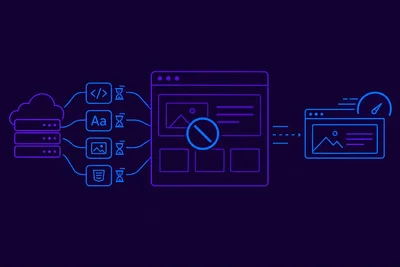
Images are almost always the heaviest assets on a webpage. A single unoptimized hero image can weigh more than all your JavaScript and CSS files combined. If you've done everything right with your code but your pages still feel slow, images are usually the culprit — and switching to modern compression formats is one of the highest-impact changes you can make.
This post breaks down how WebP and AVIF work, how they compare to older formats like JPEG and PNG, and how to actually implement them without breaking anything for older browsers.
Why Image Format Choice Matters for Page Load Time Optimization
When a browser loads a page, it downloads every image as a separate HTTP request. The bigger those files, the longer the page takes to render. This directly affects your Largest Contentful Paint (LCP) score — one of Google's Core Web Vitals — because LCP almost always targets a large image.
The math is straightforward: a 400KB JPEG converted to WebP typically shrinks to around 150–200KB. At the same quality. With no visible difference to the human eye. That's a 50%+ reduction in bytes the browser has to download before it can display your content.
Page load time optimization isn't just about user experience. Google uses page speed as a ranking signal. Faster load times directly correlate with lower bounce rates, higher conversions, and better search positions. Trimming image weight is one of the few optimizations that pays dividends across all three simultaneously.
JPEG and PNG: Why They're Showing Their Age
JPEG was designed in 1992. PNG followed in 1996. Both were brilliant solutions for their time, but compression technology has advanced enormously since then.
JPEG uses lossy compression, which means it discards some image data to reduce file size. The problem is that its compression algorithm is inefficient by modern standards — it creates blocky artifacts at higher compression levels, so you have to be conservative to maintain quality. PNG is lossless and handles transparency well, but its file sizes are typically much larger than necessary for photographs.
Neither format was designed with today's high-density displays, large viewport widths, or bandwidth-sensitive mobile users in mind.
WebP: The Practical Middle Ground
Google introduced WebP in 2010, and it's now supported by all major browsers — including Safari since version 14. It supports both lossy and lossless compression, plus transparency (unlike JPEG) and animation (unlike JPEG or PNG).
How much smaller are WebP files?
Google's own benchmarks show that WebP lossy images are roughly 25–34% smaller than comparable JPEGs. Lossless WebP is about 26% smaller than equivalent PNGs. Real-world results vary, but even at the conservative end, the savings are significant at scale.
If your homepage has 10 product images averaging 300KB each as JPEGs, switching to WebP could cut that payload from 3MB to around 2MB. On a mobile connection, that difference is the gap between a user staying and leaving.
When to use WebP
- Product photos and hero images (replace JPEG)
- Screenshots and UI graphics with transparency (replace PNG)
- Animated banners (replace GIF — WebP animated files are dramatically smaller)
- Any image where broad browser support matters more than maximum compression
AVIF: The Next Step Forward
AVIF (AV1 Image File Format) is newer and more aggressive. It's based on the AV1 video codec and delivers significantly better compression than WebP — typically 50% smaller than JPEG and 20% smaller than WebP at comparable visual quality.
The trade-off is encoding time. AVIF files take noticeably longer to generate than WebP or JPEG, which matters if you're encoding large volumes of images on the fly. But for static sites or pre-processed image pipelines, this is rarely a problem.
Browser support for AVIF
AVIF is supported in Chrome, Firefox, Edge, and Safari 16+. It doesn't yet have the universal coverage of WebP, which is why the recommended approach is to offer AVIF first, WebP as a fallback, and JPEG/PNG as a last resort. More on that implementation below.
When AVIF shines
- High-resolution photography where compression quality really shows
- Images with complex gradients or fine detail
- Sites targeting users on bandwidth-limited mobile connections
- Any context where you're pre-generating and caching image assets
How to Implement Both Formats Without Breaking Older Browsers
The HTML <picture> element is your best friend here. It lets browsers pick the best format they support without any JavaScript.
<picture> <source srcset="hero.avif" type="image/avif"> <source srcset="hero.webp" type="image/webp"> <img src="hero.jpg" alt="Hero image" width="1200" height="600"> </picture>Browsers read the <source> elements in order. If they support AVIF, they take it. If not, they try WebP. If neither works, they fall back to the <img> tag. Zero JavaScript, zero broken images, maximum compatibility.
Always include the width and height attributes on the <img> tag. This lets the browser reserve space before the image loads, which prevents layout shifts and directly improves your Cumulative Layout Shift (CLS) score.
Page Load Time Optimization: The Encoding Workflow
You need a way to convert your existing images. Here are the main options:
Command-line tools
For batch processing, cwebp (from Google) and avifenc are fast and scriptable:
# Convert JPEG to WebP cwebp -q 80 input.jpg -o output.webp # Convert JPEG to AVIF avifenc --min 20 --max 40 input.jpg output.avifBuild tools and CDNs
- Sharp (Node.js) — fast, programmable, handles WebP and AVIF conversion in CI pipelines
- Squoosh CLI — excellent for batch processing with fine-grained quality control
- Cloudflare Images / Imgix / Cloudinary — serve the right format automatically based on browser Accept headers, with zero manual conversion
- WordPress — plugins like Imagify, ShortPixel, or EWWW Image Optimizer auto-convert uploads to WebP or AVIF
Serving from cache
Once your images are in the right formats, make sure they're being cached aggressively. Images don't change often, so long cache lifetimes — 30 days or more — mean returning visitors load them instantly from their local cache rather than making new requests. If your hosting stack processes requests through a caching layer, those cached image responses skip the origin server entirely, cutting both latency and server load.
A Few Things People Get Wrong
Switching formats alone won't fix everything. A common mistake is converting images to WebP but still serving them at the wrong dimensions. A 3000px wide image scaled down with CSS is still a 3000px wide image being downloaded. Use the srcset attribute to serve appropriately sized images at different breakpoints:
<img srcset="image-480w.webp 480w, image-800w.webp 800w, image-1200w.webp 1200w" sizes="(max-width: 600px) 480px, (max-width: 1000px) 800px, 1200px" src="image-1200w.jpg" alt="Responsive image" width="1200" height="800" >Also: don't compress images you've already compressed. Running a JPEG through AVIF conversion after it's already been saved at 60% quality won't recover what's already been lost. Always work from the highest quality original you have.
Measuring the Impact
Before and after any image optimization work, measure with real tools:
- Google PageSpeed Insights — flags unoptimized images directly and estimates potential savings
- WebPageTest — shows waterfall charts so you can see exactly which images are holding up your load time
- Chrome DevTools Network tab — filter by image type to see sizes and load order
- Lighthouse — the "Serve images in next-gen formats" audit tells you exactly which images to convert
A realistic target: if Lighthouse is flagging images for page load time optimization, aim to cut your total image payload by at least 40–50% through format conversion alone, before touching anything else. Most sites can hit this without any visible quality loss.
The Bottom Line
Switching from JPEG and PNG to WebP and AVIF is one of the most effective page load time optimizations available — and it requires no changes to your server, your code, or your design. The <picture> element handles backward compatibility automatically, the tooling to convert images is free and scriptable, and the file size savings are real and immediate.
Start with your heaviest images — hero banners, product photos, gallery images — and work down. Use Lighthouse to prioritize. Measure before and after. The results tend to speak for themselves, and pairing format conversion with broader website speed optimization will compound the gains further.